Travel CRM Installation & Deployment Guide
Follow this step-by-step visual tutorial to install Travel CRM on any shared cPanel hosting, VPS, or dedicated cloud server within 5 minutes.
1. Server Prerequisites & Compatibility
Travel CRM is engineered on top of Laravel 11 and modern PHP 8.2+. It runs smoothly on any Linux, Cloud, VPS, or shared cPanel/Plesk hosting (such as Hostinger, Namecheap, Bluehost, GoDaddy, AWS Lightsail, or DigitalOcean).
- PHP: Version 8.2 or 8.3
- Database: MySQL 8.0+ or MariaDB 10.4+
- Web Server: Apache (with
mod_rewriteenabled) or NGINX - PHP Extensions:
pdo_mysql,curl,mbstring,fileinfo,openssl,gd,bcmath,tokenizer,json - Storage Permissions:
0775onstorage/andbootstrap/cache/
2. Upload & Extract Release Package
After completing your purchase, download your release package: TravelCRM_Client_Software.zip (or the all-in-one bundle containing your license certificate and instructions).
- Log in to your hosting account (e.g. cPanel, Plesk, or Hostinger hPanel).
- Open File Manager and navigate to your domain document root (usually
public_htmlor your subdomain directory likecrm.yourdomain.com). - Click Upload and upload the
TravelCRM_Client_Software.zipfile. - Right-click the uploaded zip file and select Extract.
- Ensure all files (including hidden dotfiles such as
.htaccessand.env.example) are extracted directly into the domain folder.
.htaccess and .env are visible.
3. Launch Web Installer & Requirements Check
Open your web browser and navigate to your domain: https://yourtraveldomain.com. The installer will automatically recognize fresh deployment and route you to the Web Installation Wizard.
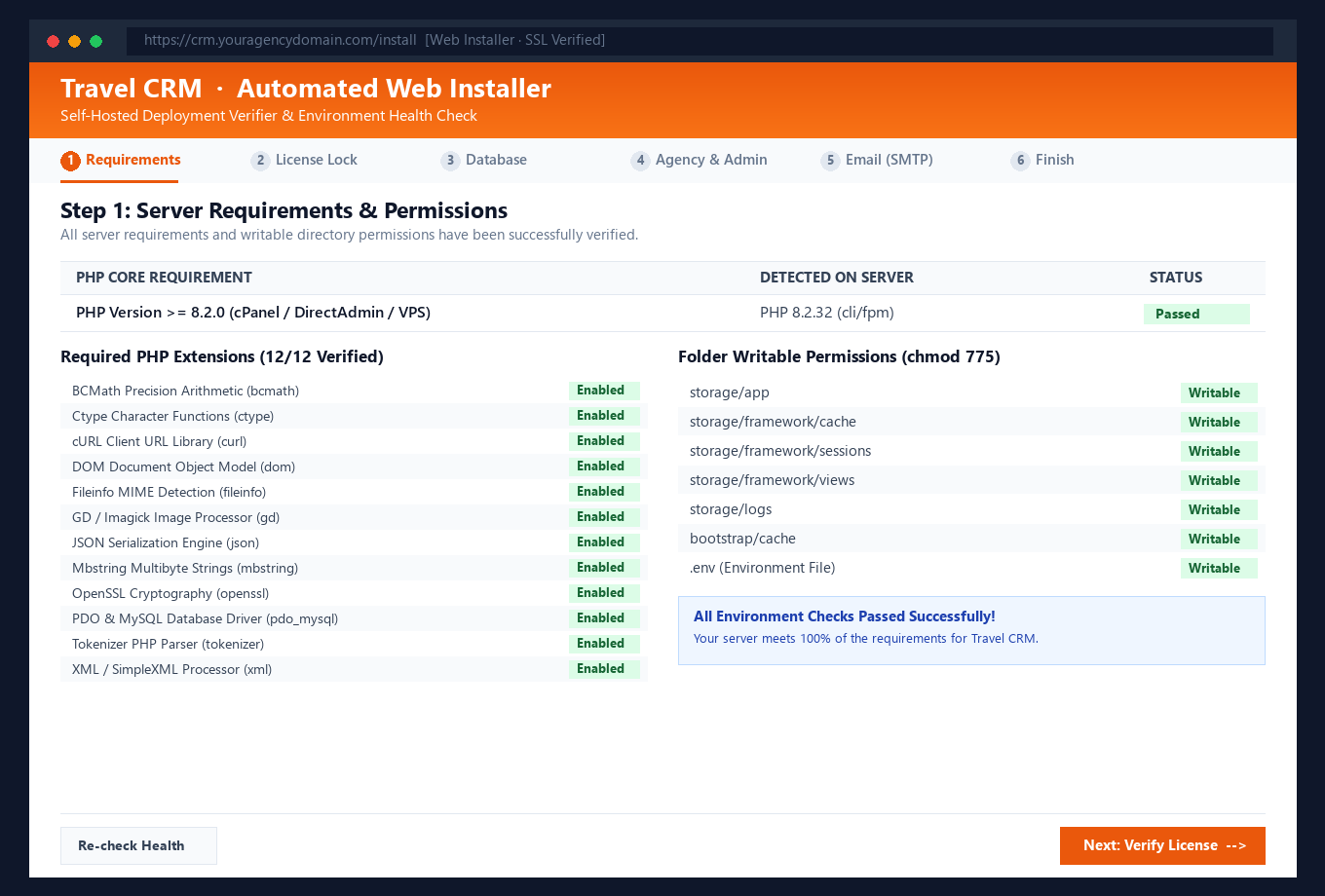
The wizard checks all required PHP extensions and writable directories. Once every item displays a green ✓ Writable / ✓ Loaded badge, click "Next: Verify License →".
4. Enter Purchase Code & Domain Lock
To protect commercial copyright and prevent unauthorized multi-site cloning, Travel CRM requires a valid Purchase Code before installation can proceed to database configuration.
- The wizard detects your active production domain (e.g.
agencyname.com). - You paste your unique purchase code in format
TCRM-XXXX-XXXX-XXXX-XXXX. - The installer verifies the purchase code and permanently binds it to your domain.
- If someone attempts to copy your CRM files onto another live domain, the system rejects installation.
localhost, 127.0.0.1, *.test, *.local) are fully supported without burning your 1 live domain activation!
5. Database Configuration & Automatic Migration
Next, connect your MySQL database. In cPanel, navigate to MySQL Databases or MySQL Database Wizard to create a new database and user.
- Application URL:
https://yourdomain.com(auto-detected) - Database Host:
127.0.0.1(orlocalhost) - Database Port:
3306 - Database Name: e.g.
cpaneluser_travelcrm - Database Username: e.g.
cpaneluser_crmuser - Database Password: Your secure database user password
Click "Test Connection & Run Migrations". The installer tests the connection, sets up tables, seeds master currencies, default roles, and configuration templates in a few seconds.
6. Travel Agency Profile & Super Admin Account
Configure your travel company branding and create your primary administrator credentials:
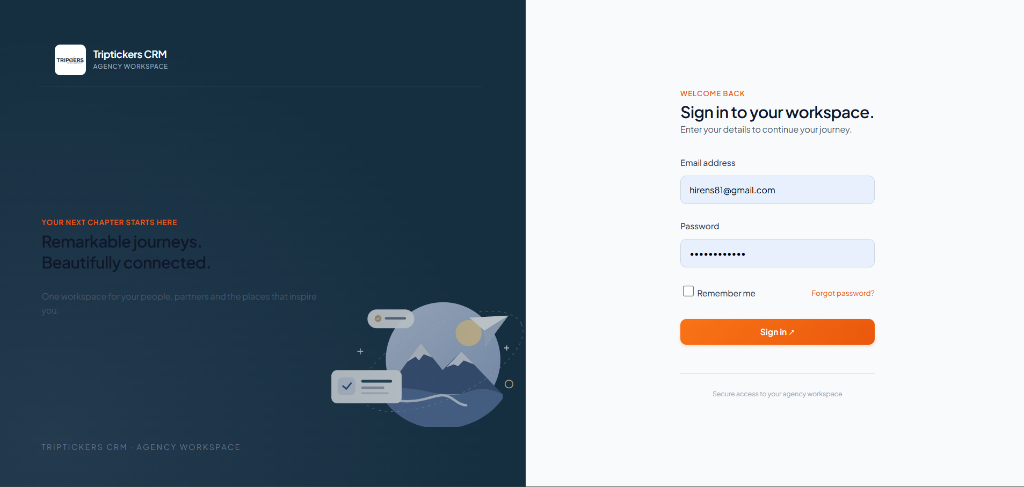
- Travel Agency Name: Displayed on client proposals, PDF itineraries, and invoices.
- Company Phone & Email: Included on customer vouchers and payment receipts.
- Default Operating Currency: INR (₹), USD ($), EUR (€), AED, or GBP.
- Admin Email & Password: Your master login credentials to access the CRM dashboard.
7. Outgoing Email (SMTP) & 2FA Security
Configure your business email SMTP settings so the CRM can dispatch automated quotation PDFs, booking payment links, and Two-Factor Email OTP codes.
Supported providers: cPanel Webmail, Google Workspace / Gmail SMTP, Zoho Mail, SendGrid, Amazon SES, or Mailgun.
* This step can be skipped during initial install and configured anytime later from Settings → Email Configuration.
8. Single-Domain Anti-Piracy & Domain Transfers
Each Standard Agency license is licensed for 1 live production domain.
If you change your domain name or migrate to a new server, simply log in to your Super Admin panel or contact our licensing support desk. The administrator can reset the domain lock with 1 click, allowing you to reactivate the purchase code on your new domain immediately.
9. Frequently Asked Troubleshooting Questions
Getting a 500 Internal Server Error when uploading the ZIP?
Ensure you have PHP 8.2 or PHP 8.3 selected in cPanel (under MultiPHP Manager or Select PHP Version). Also check that the .htaccess file was extracted into the root folder.
"Purchase code locked to another domain" error during install?
This indicates the code was previously activated on a different live domain. If you are the legitimate buyer moving domains, use the License Portal or contact support to reset your domain binding.
How do I configure Cron Jobs for daily follow-up alerts?
In your cPanel Cron Jobs section, add a cron job running every minute:
* * * * * cd /home/username/public_html && php artisan schedule:run >> /dev/null 2>&1